A QR code flyer lets someone at a bulletin board open a sign-up form, a menu or a job application without typing a link. The code has to be real: it must encode your exact link, and a pattern that only looks like a QR code opens nothing. Below are wording ideas for eight uses, the steps to add a real code to any flyer, including one made with AI, Denso Wave's size and margin rules with the numbers worked out, and fixes for codes that won't scan.
What to put on a QR code flyer
The code is one item on the flyer, and the flyer still has to work without it. In order of importance:
- The details that work without the code. The event, day, date, time and place, or the offer. Someone without a phone should still know what's happening.
- The code itself, made from your exact link.
- A label saying what it opens. "Scan to sign up", "Scan for the full menu", "Scan to apply".
- The link typed under it. "example.com/cleanup" helps people whose cameras won't scan.
- Blank space around the code. A margin four modules wide on every side (a module is one small square of the code).
- A deadline for sign-ups. "Sign up by Friday, October 16."
- Your name and one other way to reach you. A phone number or email.
QR code flyer ideas and wording
Each row is a QR code flyer example you can adapt. The label goes right next to the code; the supporting line goes in the main text.
| Use | What the code opens | Label by the code | Supporting line |
|---|---|---|---|
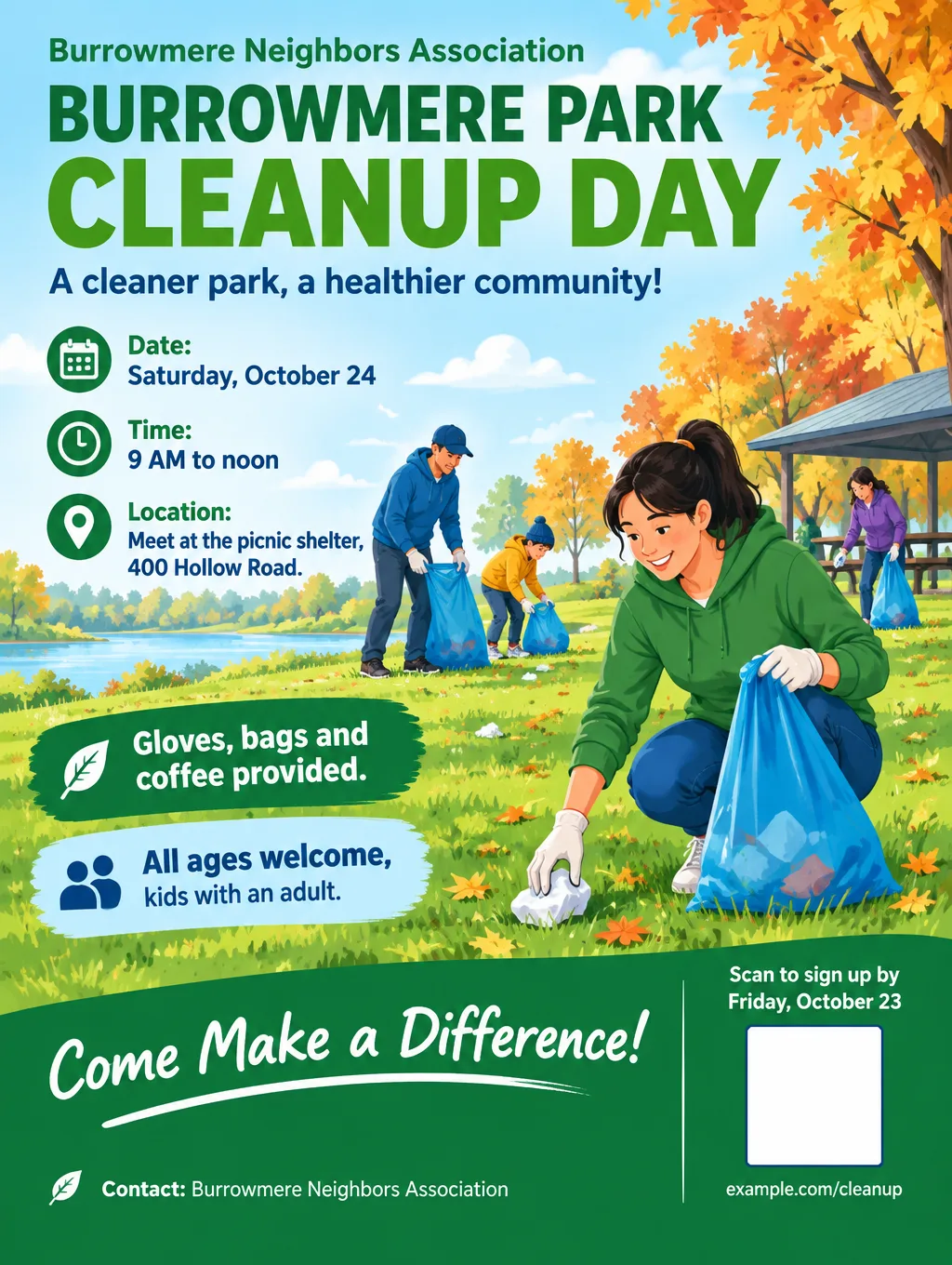
| Event sign-up | A volunteer or RSVP form | "Scan to sign up" | "Saturday, October 24, 9 AM to noon. Gloves provided." |
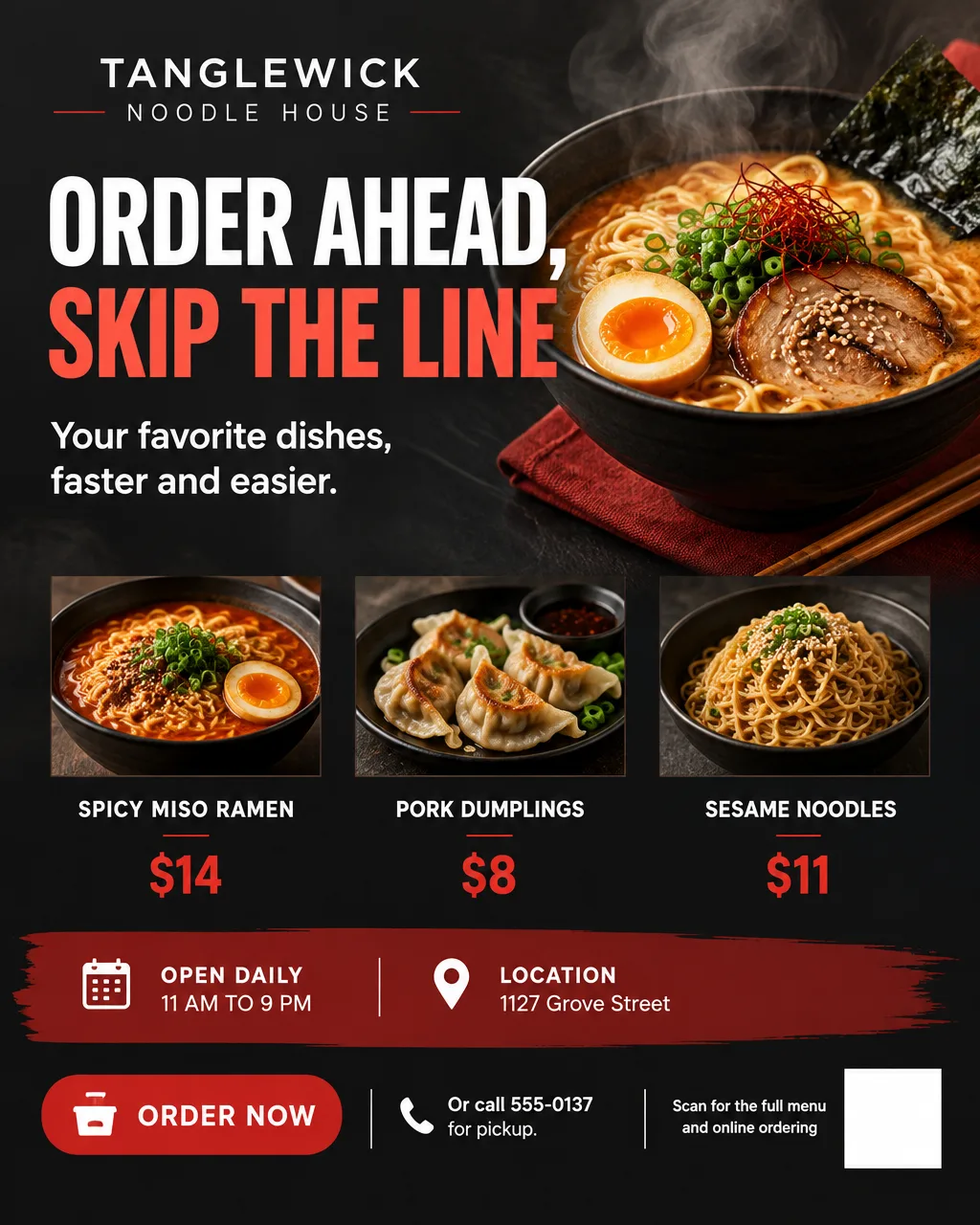
| Takeout menu | The full menu or ordering page | "Scan for the full menu" | "Three favorites and prices on this flyer, the rest online." |
| Hiring | The application form | "Scan to apply" | "Line cooks, $18 an hour. Pay printed right here." |
| Google reviews | Your review form | "Scan to leave a review" | "Tell us about your visit." |
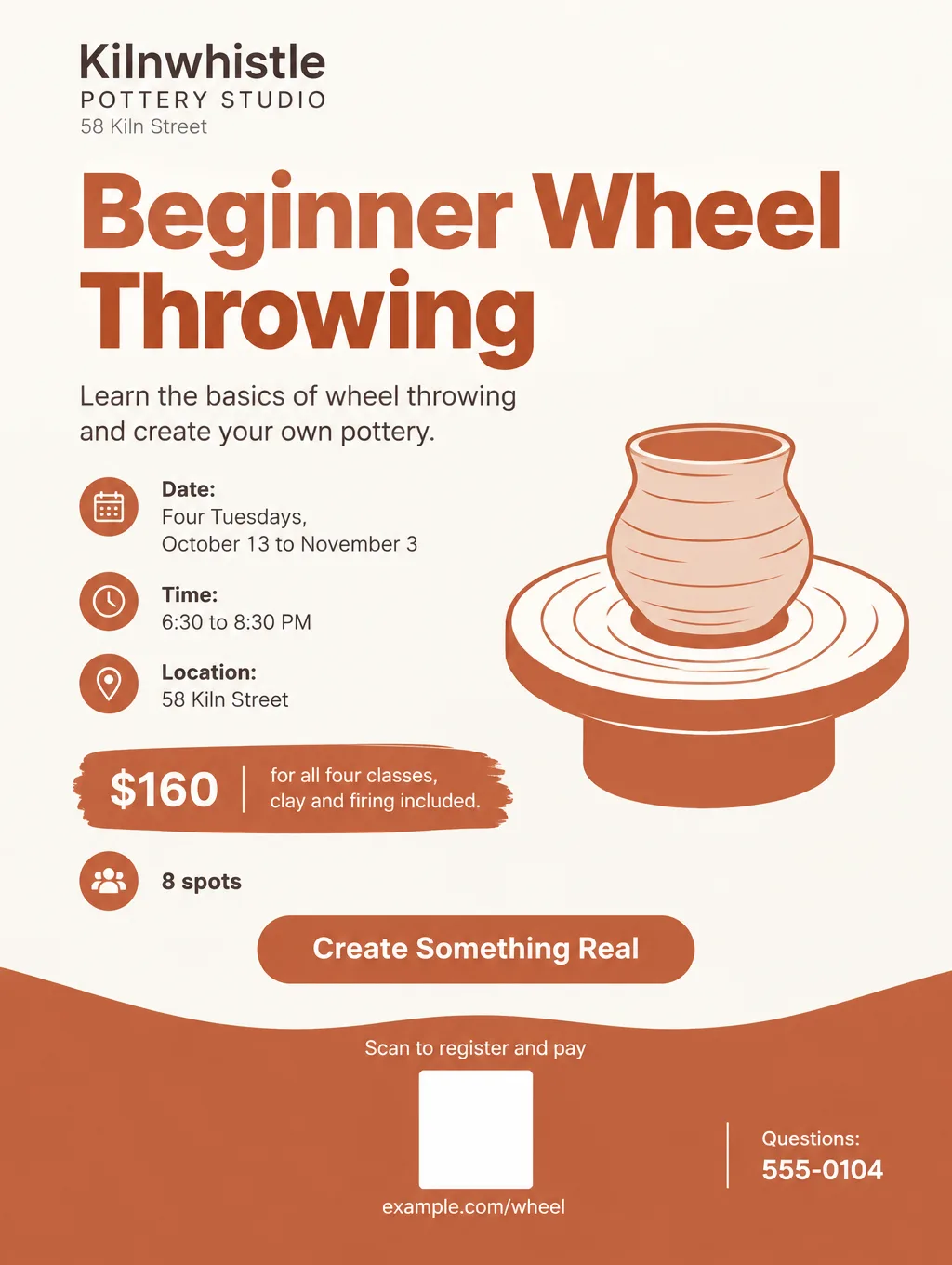
| Class registration | A sign-up and payment page | "Scan to register" | "Four Tuesdays, 6:30 to 8:30 PM. 8 spots." |
| Home for rent | The listing with photos | "Scan for photos and the application" | "2 bed, 1 bath, $1,450 a month." |
| Fundraiser | A donation page | "Scan to give" | "Every dollar goes to the fifth-grade field trip." |
| Lost pet | A sightings form or map | "Scan to report a sighting" | "Don't chase him. Note the time and street." |
Three of these have their own pages. The event flyer wording lists the details a sign-up flyer needs before anyone scans. For hiring, the now hiring flyer page explains why the pay belongs on the paper itself rather than behind the code. For reviews, the Google review flyer covers Google's rules on asking.
How to add a real QR code to a flyer
A QR code stores the characters of your link in its pattern. A drawn pattern that only resembles one, from any image tool, hasn't stored your link, so a phone either ignores it or opens nothing useful. The fix is to make the flyer and the code separately, then put them together.
Step 1: Make the code from your link
- Any web page, from Chrome on a computer. Open the page, select More, then "Cast, save, and share", then "Create QR code", and select Download.
- Google reviews. In a computer browser, go to your Business Profile, choose "Read Reviews" and then "Get more reviews", and right-click the QR code to save it. Google's help page says a phone or tablet can't make these review codes.
- A form, menu or listing elsewhere. Paste its link into any QR generator. Download the largest PNG it offers, not a screenshot, so the edges stay sharp in print.
Scan the downloaded code once and read the address your phone shows before you open it. If it's your own link, the code works for as long as that page does. If it's a short link on the generator's own website, the code depends on that service keeping the link live, so read its terms before you print a stack of flyers.
Step 2: Make the flyer with a blank square
Leave an empty square where the code will go, near a corner and away from any fold. Flyer Maker has a switch for this under "More options", "Leave a blank square for your QR code", and it won't draw a code in that square.
Step 3: Place the code on the flyer
Any editor that can put one image on top of another works. In Microsoft Word:
- Insert the flyer image, select it, select "Layout Options" and choose "Behind Text", so it can sit as the page background.
- Insert the QR code image, select "Layout Options" and choose any layout other than "In Line with Text", so you can move it freely.
- Drag the code onto the blank square and resize it to fill the square, keeping all four sides equal.
- Print from Word, or save a copy for the print shop.
Step 4: Test the printed flyer
Print one copy at full size. On an iPhone, open Camera, keep it in Photo mode, point it so the code sits inside the frame, and tap the link that pops up near the bottom. Test with an Android phone as well, from the distance people will stand, and check that it opens the right page.
QR code size, margin and color rules
Denso Wave, the company that released the QR code in 1994, publishes guidance for printed codes that comes down to five rules:
- Leave a quiet zone. A QR code needs a clear margin four modules wide on all sides, with nothing printed in it.
- Print it as large as the space allows. Bigger modules read more reliably, and Denso Wave recommends using as much of the free space on the page as you can.
- Use black on white. Scanners that read with red light can't pick up some color pairs, including a red code on a white background and a blue code on a green one. Phones vary, so test any colored code.
- Don't draw on it. Overlaying an illustration or pattern on a code can make it unreadable, even with its built-in error correction.
- Keep the link short. A longer link needs more modules, so each square prints smaller at the same code size.
That last rule decides how big the code has to be. Denso Wave says level M error correction, which can restore about 15% of the data, is the level most often chosen. Its capacity table puts a link of up to 42 characters at level M in a Version 3 code, which is 29 x 29 modules. Here is how big each module gets at common print widths, not counting the margin:
| Link length | Code version (level M) | Modules per side | Module size at 1 in wide | Module size at 1.5 in wide |
|---|---|---|---|---|
| Up to 42 characters | 3 | 29 | 0.88 mm | 1.31 mm |
| Up to 84 characters | 5 | 37 | 0.69 mm | 1.03 mm |
| Up to 122 characters | 7 | 45 | 0.56 mm | 0.85 mm |
Module size is the printed width divided by the modules per side (25.4 mm for 1 inch). Denso Wave's printer table puts a 600 dpi laser printer at modules as small as 0.17 mm, so the printer is rarely the limit; the phone camera at arm's length is. Add the margin on top: at 1 inch wide, a Version 3 code needs about 3.5 mm of blank space on each side.
QR code flyer design tips
Keep the code away from folds and trim lines. A fold breaks modules, and a code close to the paper's edge can lose its margin when the print shop trims the stack. A corner inside the margins, such as the lower right, keeps it clear of both.
One code per flyer. Two codes make readers guess which one to scan. If you need two destinations, make one landing page that links to both.
Start the label with a verb. "Scan to sign up" says what happens. "Scan me" doesn't.
Make the landing page work on a phone. A code that opens a desktop PDF or a long form loses people halfway. Test the page on the phone you scanned with.
Post the flyer at eye level. On a crowded board, a code at knee height or above other flyers is hard to hold a phone steady in front of.
Common QR code flyer problems
| Problem | Likely cause | Fix |
|---|---|---|
| The phone doesn't react | The code is printed too small or the margin is cut off | Print it larger and restore the blank margin |
| It opens nothing or a random page | The code was drawn by an image tool, not generated | Generate a real code from your link and paste it in |
| It opens something you didn't expect | A code from a trial or demo generator | Denso Wave warns that trial software can encode data in a nonstandard way; regenerate it with a full generator |
| It opens the wrong page | An old link, a typo, or the wrong location's code | Regenerate from the correct link and test again |
| It scans on screen but not on paper | Low contrast, a colored code, or glossy paper glare | Print black on white on matte paper |
| The edges look fuzzy in print | A small screenshot was stretched | Download the largest PNG from the generator |
| It worked for months, then stopped | The page moved, or the code holds a generator's short link that was switched off | Make the code from your own link and keep that page live |
How to make a QR code flyer in Flyer Maker
- Type the flyer into "Describe your flyer" in Flyer Maker, including the label for the code ("Scan to sign up by Friday, October 23") and the typed link that goes under it.
- Tall is the size for paper. A Portrait post on social media works too, though there people can tap a link instead of scanning.
- Open "More options" and switch on "Leave a blank square for your QR code". Set Quality to 2K or 4K for printing.
- Tap "Create flyer". Allow about 30 seconds for it to finish.
- Check the dates, times and the typed link letter by letter, and remove any tagline you didn't type, because Flyer Maker fills empty spots with its own words. A single wrong detail can go into "Want to change something?" below the result, currently 60 credits (70 at 2K, 90 at 4K).
- Download the PNG and layer your generated code over the empty square as in "Step 3: Place the code on the flyer", then scan a printed copy with two phones.
Decide the one thing the code should open before you design. The offer wording for small businesses shows which call to action suits each kind of deal.