A Google review flyer is the card by the register, the table tent next to the salt, or the note left on a car seat after a repair. It asks customers to write a review and prints the code that takes their phone straight to your review form, so nobody has to search for you. Here is what the card should say, the Google rules that decide what you can offer, wording for eight kinds of business, and how to download your real code. A shop's other flyers, from sales to hiring, are collected in the flyer ideas for shops and service businesses.
What to put on a Google review flyer
A review card holds less than a regular flyer. In order of size:
- A short, neutral question or request. "How did we do?" or "Tell us about your visit." Not "Love us? Give us 5 stars."
- The QR code. Your real review link from your Business Profile, printed as large as the card allows, with a white margin around it.
- One line on how to scan. "Point your phone camera at the code." It helps anyone who hasn't scanned one before.
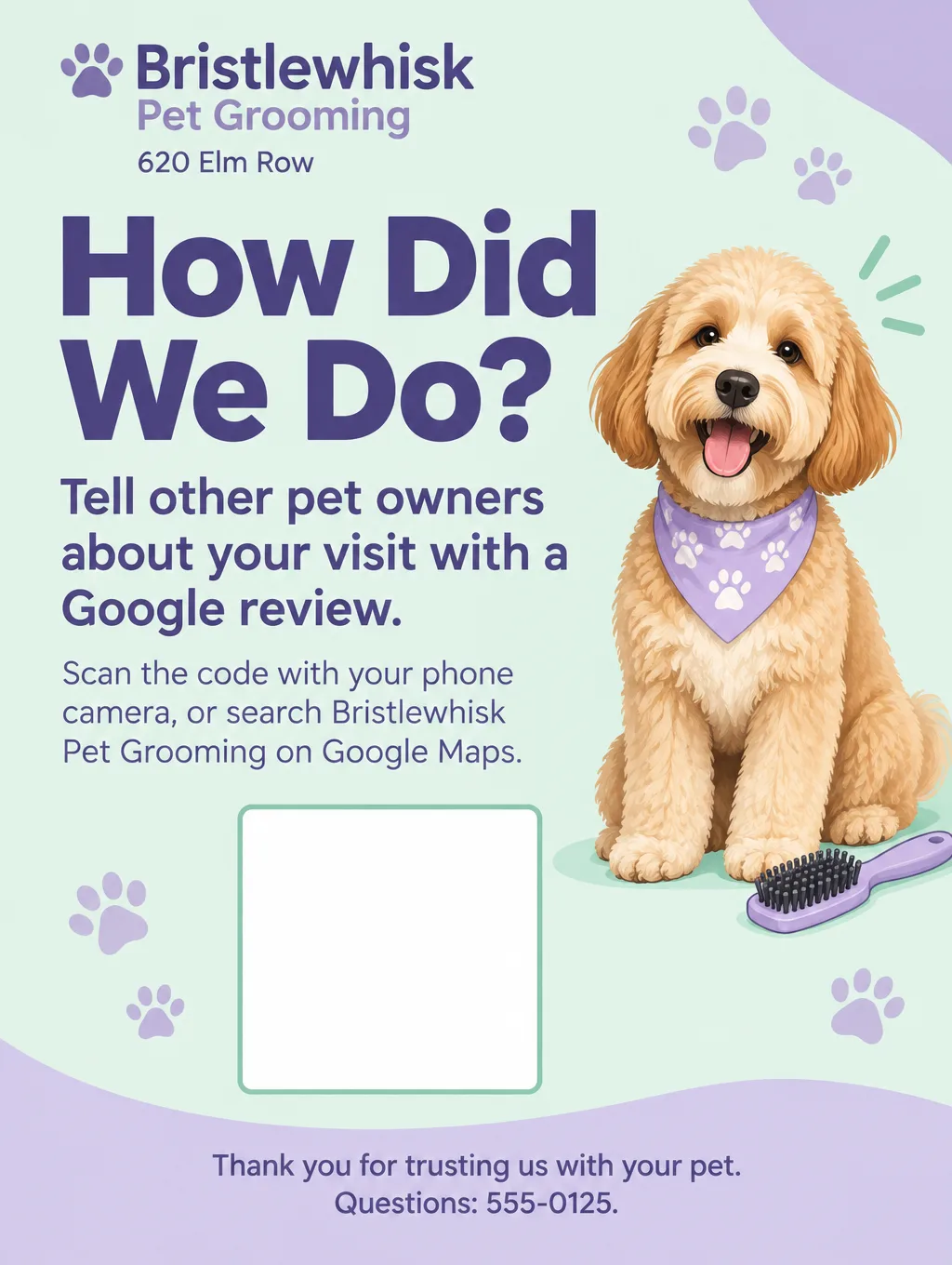
- A backup route. "Or search Bristlewhisk Pet Grooming on Google Maps."
- Your business name and logo. So the card still makes sense on a fridge a week later.
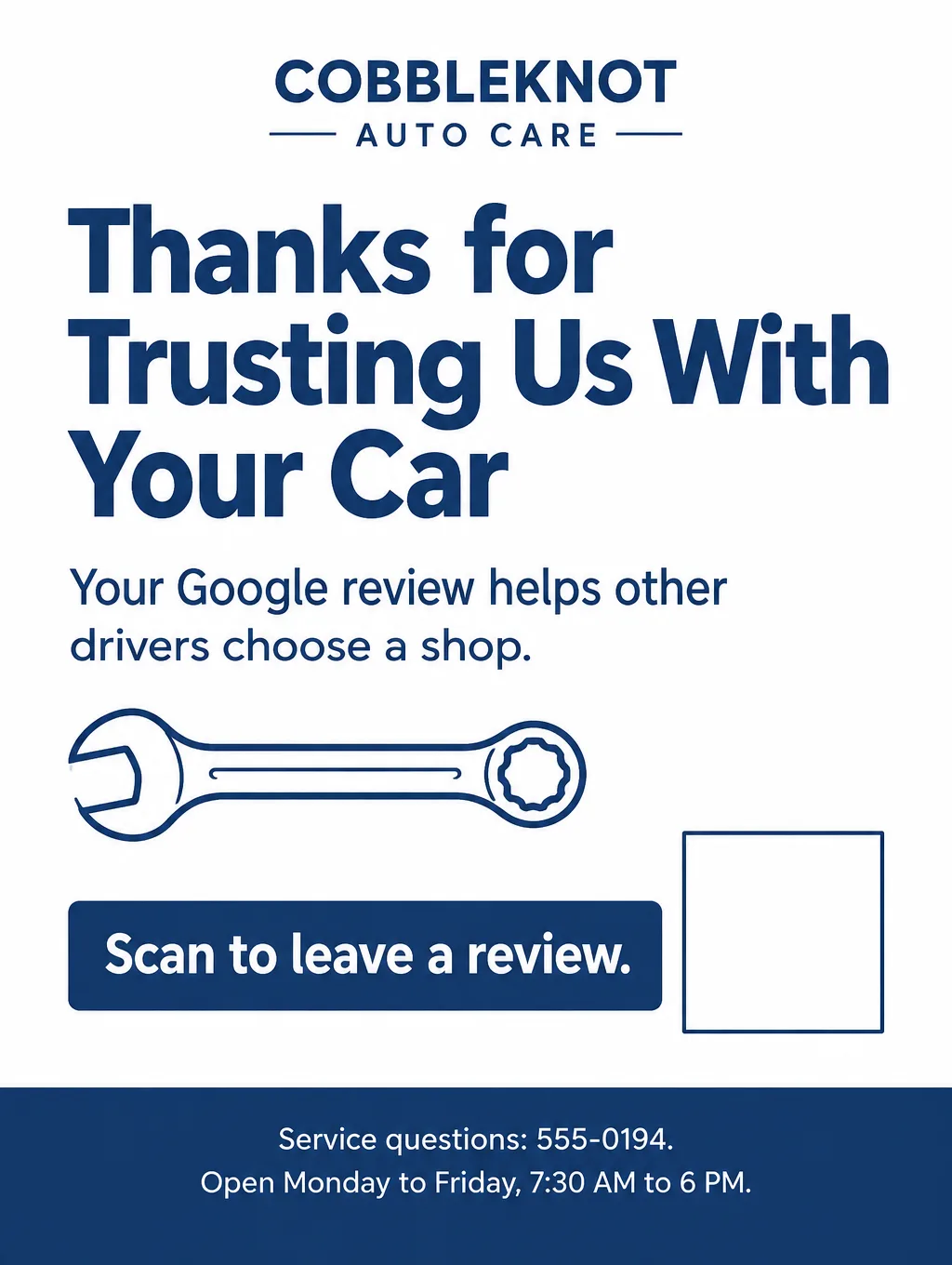
- A thank-you. "Thanks for choosing us" or "Thank you for trusting us with your car."
- What reviewers need (optional). Google says a reviewer must be signed in to a Google Account, and the account doesn't have to use Gmail. A line like "A Google Account works with your own email, not just Gmail" helps customers who don't have one.
- A contact line for questions (optional). Hours or a phone number, kept separate from the review request.
- The location, if you run more than one shop. Download each shop's code from that shop's own Business Profile, and print its address on its cards.
Google's rules for review request flyers
Google allows businesses to ask for reviews, and its help center suggests printing and displaying the review QR code in your store. The limits come from Google's Maps content policy:
| Allowed | Not allowed |
|---|---|
| Asking every customer for an honest review | Offering payment, discounts, free goods or services for a review |
| A card on the counter, a receipt or a thank-you email | Offering a reward to change or remove a negative review |
| Neutral wording: "Tell us about your visit" | Asking only happy customers, or discouraging negative reviews |
| Staff mentioning the card to everyone | Review quotas for staff, or asking customers to name a staff member in the review |
| A card customers can use later at home | Requiring or pressuring customers to review while still on the premises |
Google also treats reviews from current or former employees, relatives and competitors as conflicts of interest, so the card is for customers only. Google's policy bans incentives for any review at all, good or bad, so a Google review card offers nothing but thanks. Never write, buy or make up reviews, and don't hint at a reward either, such as a coupon for telling a restaurant "how much you loved your visit". If a card design you like has a coupon code or a "review us, get 10% off" line, delete that part before you print.
Two more points from Google's help pages shape the wording. Its tips page notes that a profile with both good and bad reviews often reads as more trustworthy, which is one more reason to ask everyone. And when you answer reviews later, Google asks you not to use your reply to push deals or promotions.
Google review flyer ideas and wording
These review request flyer lines cover eight trades, each with a made-up business name.
| Business | Headline | Supporting line |
|---|---|---|
| Cafe or bakery | "How Was Your Coffee?" | "Tell other neighbors about your visit on Google." |
| Salon or barber | "Tell Us About Your Cut" | "Scan the code to leave a Google review." |
| Pet groomer | "How Did We Do?" | "Tell other pet owners about your visit." |
| Auto repair | "Thanks for Trusting Us With Your Car" | "Your Google review helps other drivers choose a shop." |
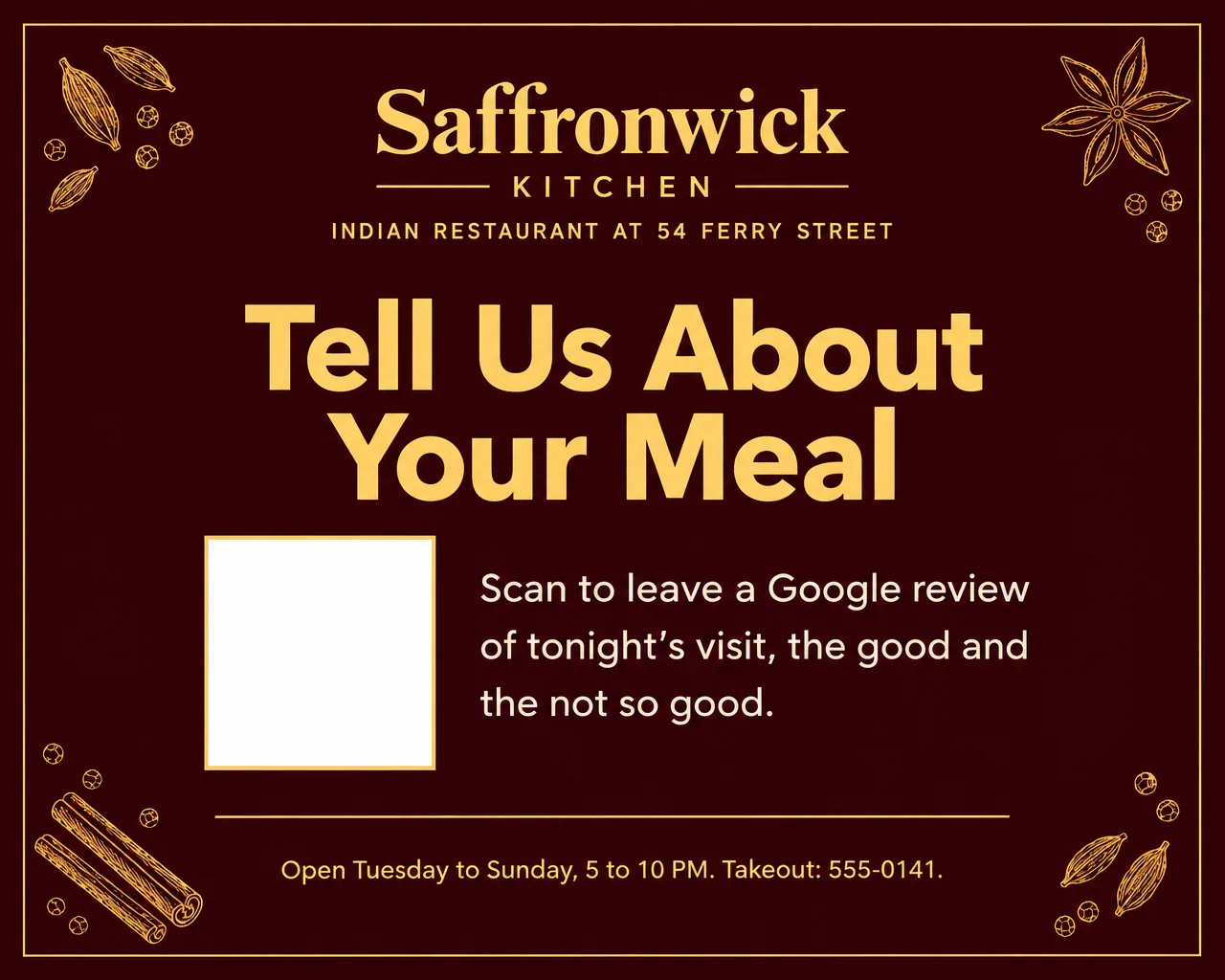
| Restaurant table tent | "Tell Us About Your Meal" | "The good and the not so good, on Google." |
| Home service leave-behind | "Thanks for Having Us Over" | "Scan to review today's cleaning, lawn visit or repair." |
| Retail bag insert | "Thanks for Shopping Local" | "Share your experience with a Google review." |
| Clinic or office front desk | "We'd Like Your Feedback" | "Scan to leave a Google review of your visit today." |
A restaurant can use two cards: a table tent for diners and a bag insert for takeout. The restaurant flyer ideas cover the menu and specials flyers that go out alongside them. A business that hasn't opened yet should hold its cards. Google holds back customer reviews and photos on a new profile until the official opening day, so review cards follow the grand opening flyer rather than going out with it.
How to get your Google review QR code
Google makes the code for you, but only in a computer browser. For now, its help center says, review codes can't be created from a phone or tablet.
- On a computer, open your Business Profile.
- Choose "Read Reviews", then "Get more reviews".
- Choose "Copy" if you want the link. For the code itself, right-click the QR image and choose "Save image as".
- Save the file with the location's name, such as "elm-row-review-qr.png", if you have more than one shop.
- Scan the downloaded code with your phone before it goes on the card, and check that it opens your own review form, not another location's.
For the flyer itself, switch on "Leave a blank square for your QR code" in Flyer Maker and paste the downloaded code into that square. The QR code flyer guide has the size, margin and color rules that keep it scannable.
Google review flyer design tips
Design for arm's length, not across the room. A counter card is read by someone holding a bag or a card reader. A 5 x 7 inch card with the question in large type and the code in the lower half is enough.
Put the code where a phone can reach it. On a table tent, the code goes on both sides at the same height, not near the fold where the paper bends.
Protect cards that sit by the register. A counter card gets handled, splashed and pushed around all day. Slide it into a clear stand or use a matte laminate, and scan it with your own phone every few weeks. Reprint it once the code is scratched.
Write "Google" in plain text. A clean line of text reads better at card size than an attempt at a logo. Add "no logos" to your description so the name stays in plain type.
Keep the thank-you and the request on one card. A separate "thank you" card and "review us" card doubles the clutter on a small counter.
Match the card to your receipts and bags. Use "My brand colors" under "Colors" and name your colors, so the card looks like part of the shop and not a sticker from somewhere else.
Google review flyer sizes
| Display | Card or paper size | Flyer Maker setting |
|---|---|---|
| Counter stand, register | 5 x 7 in card | Tall, 2K |
| Table tent, one panel per side | 5 x 7 in | Tall or Wide, 2K |
| Home service leave-behind | Half sheet, 5.5 x 8.5 in | Tall, 2K or 4K |
| Window by the exit | Letter, 8.5 x 11 in | Tall, 4K |
Tall at 2K is 1536 x 2048 pixels. With about 1/4 inch trimmed off the width, a 5 x 7 counter card comes out near 290 pixels per inch. Print one card first and scan its code at arm's length before printing the stack.
How to make a Google review flyer in Flyer Maker
- Download your review QR code from your Business Profile in a computer browser: "Read Reviews", then "Get more reviews".
- Write the card in Flyer Maker's "Describe your flyer" box: headline, one supporting line, the scan instruction, a backup route, your name and a contact line, plus "write the word Google in plain text, no logos".
- Tap "Add your logo" so the card matches your shop.
- Pick Tall for a counter card, or Wide for a landscape table tent panel.
- Inside "More options", turn on "Leave a blank square for your QR code" and set Quality to 2K, enough for a 5 x 7 print.
- Tap "Create flyer". The card is ready in about 30 seconds.
- Drop the downloaded code onto the empty square with any photo editor, and scan the result.
- Read every word on the card. Flyer Maker fills in details a short description leaves out, so delete any slogan you didn't write. Fix a wrong line in the "Want to change something?" box beneath the card, currently 60 credits at 1K (70 at 2K, 90 at 4K).
The square stays empty on purpose: a code drawn by an image tool can't open your review form, so only Google's own download belongs there. A card currently costs 80 credits at 1K or 90 at 2K; see pricing for plans and top-ups.